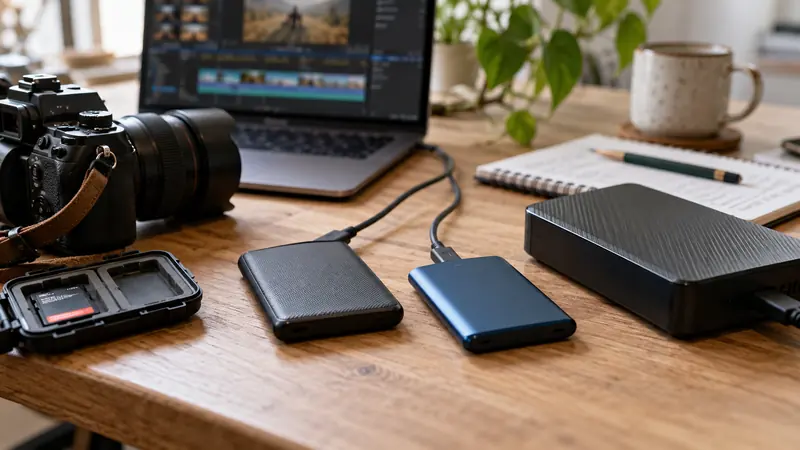
Choose storage by the workload and its role. An active editing drive needs dependable access to the streams you play together; a backup drive needs an independent, restorable copy. One fast device containing every copy is still one point of failure.
On this page
Map the project’s storage roles
| Role | What belongs there | What to check |
|---|---|---|
| Active media | Originals needed for the current edit | Sustained access and reliability under the real stream count |
| Generated working assets | Proxies, optimized media and cache | Capacity, cleanup plan and whether assets are regenerable |
| Delivery | Masters, revisions and approved exports | Naming, verification and enough space for additional renders |
| Independent backup | Project data and required originals | Separate failure path and a successful restore test |
You can combine active roles when the device can handle the workload; a four-drive diagram is not a requirement. Separate the backup role from the only working device even if your current project is small.
Calculate a lower-bound throughput budget
Four streams each averaging 100 Mbps sum to 400 Mbps, or 50 MB/s of payload reads. That arithmetic is a baseline, not a sufficient drive-performance guarantee: access patterns, competing writes, file-system behavior and headroom also matter. Scrubbing and multicam switching may behave differently from one long sequential transfer.
Run a workload check
- Keep the source format and number of simultaneous streams realistic.
- Play the representative multicam or effects segment from the intended drive.
- Repeat while normal cache or export activity is occurring.
- Check the cable, port, enclosure and power arrangements rather than only the drive’s headline speed.
- Inspect available capacity and errors. Do not run destructive disk tests against the only copy of media.
SSD and HDD choices without a fake ranking
A responsive working drive can be valuable, while a larger economical device can be appropriate for an archive or additional copy. Exact performance depends on the model and connection; Creator Edit Lab has not benchmarked drives for this guide. Avoid using an unsupported “best SSD” list as evidence for your multicam workload.
Make the archive recoverable
Keep a project inventory and an approved reference export. Record which assets are regenerable and which are irreplaceable. See recording capacity and the backup and restore checklist.
Sources and scope
This guide proposes storage roles and workload checks. It does not claim measured SSD/HDD speeds or product recommendations. Sources checked October 6, 2026.