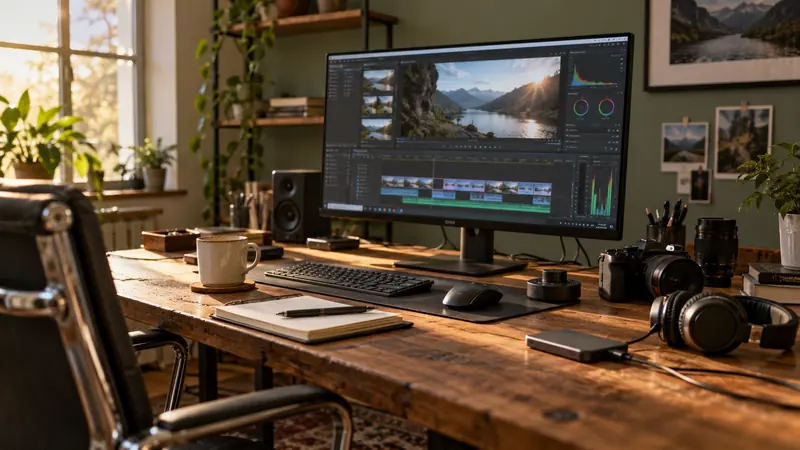
I would record from a prepared workspace containing only the material needed for the demonstration. Remove private notifications, account details and unrelated files before capture rather than relying entirely on later blur. A clean source is easier to edit and safer to reuse in crops or promotional clips.
On this page
Our recommendation
I favour a dedicated demonstration workspace and a short source review. Use post-production masking as a deliberate correction when needed, with final-frame checks, rather than as the only privacy plan.
Rehearse the actual interaction
Check the desktop, browser tabs, bookmarks, recent-file lists, account menus and download paths that may appear. Use harmless demonstration data where possible. Open the dialogs you will use during the lesson; some reveal a username, folder path or saved contact only after a button is pressed.
Review notification and communication behaviour for the recording session. Keep the required application functional while avoiding unrelated pop-ups. Do not change security protections merely to make the desktop look cleaner.
Inspect the recorded source
Record a short rehearsal and scrub through every menu and transition. Check reflections in camera overlays and any picture-in-picture view as well as the desktop. A pause frame can expose information that is hard to notice during normal playback.
If something private was captured, remove it through a reviewed editing approach and inspect all output crops. Keep the unredacted source appropriately restricted. A blur that works in one framing may be excluded by a later vertical crop or bypassed by a different export range.
A dialog rehearsal
A tutorial looks clean until the “Open file” dialog shows a personal folder name and a recent document. Rehearse that step with a dedicated demo folder and harmless files, then record again. That is more reliable than trying to track a moving blur across several pop-up states later.
Before you act
- Open the actual dialogs before the main take.
- Use harmless demonstration data.
- Review pause frames and every final crop.
Use the Delivery workbook to apply the guide to your own setup.
Keep exploring
- A project folder structure that survives handoff
- Find wrong export ranges and unintended black frames
Method note: this is an original planning procedure with illustrative inputs. It does not report a physical product test. Check the exact product, edition and official instructions before acting.
Build on what you just learned
Your next useful step.
Organize, relink and restore with confidence.
Upgrade to Resolve 21 with a project-copy acceptance test
I would upgrade a working editing system only after preserving a recoverable project library and testing a representative project copy.
Read the guide →
Resolve 21 IntelliSearch: budget the analysis before relying on search
I would test IntelliSearch on a representative media subset and keep a conventional folder and logging system alongside it.
Read the guide →