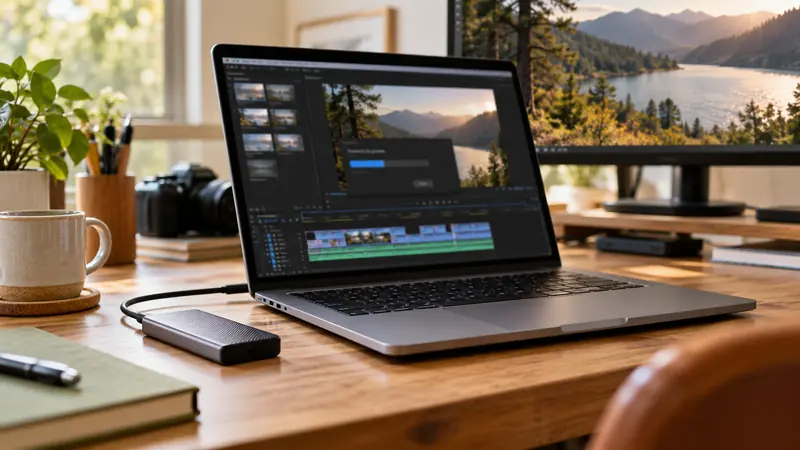
I would use generated extensions for a deliberate transition or timing need, then inspect the new frames and identify them in the project record. Do not treat generated material as additional captured evidence. For factual or client-sensitive work, agree the permitted use before including it in the delivery.
On this page
Our recommendation
I favour the simplest edit that preserves the intended meaning. Use generation only when its benefit survives a close review and its use is acceptable for the project. Keep the source and the generated region identifiable.
Check the current supported media
Adobe’s current overview lists limits around spoken dialogue, music and supported audio configurations. Those details can change by release, so check the installed version and current feature notes rather than applying an old tutorial blindly. An extension that processes successfully still needs a content review.
Keep the original clip and mark the generated region. Distinguish a generated visual continuation from a freeze frame, a repeated frame or a naturally longer take. That distinction helps another editor understand what can be revised and what was actually recorded.
Inspect beyond the transition
Review the generated section frame by frame for faces, hands, text, logos, geometry and moving objects. Then play through at normal speed with sound. Small distortions may be hidden by a dissolve but still appear in a paused client review or a different crop.
Check the rendered output’s colour, motion and audio continuity. If a generated section does not support the needed transcription, interchange or metadata workflow, use an agreed alternative and record the limitation. Do not rely on the timeline preview as the only proof of the final file.
A restrained use case
A short neutral background shot needs a little more handle for a dissolve. Generate a candidate, inspect the new region and compare it with a simple hold or a different edit. If the extension invents movement that changes the meaning of the shot, reject it even if the transition looks smoother.
Before you act
- Check current version-specific limitations.
- Mark generated regions in the project record.
- Review image, audio and meaning in the rendered result.
Use the Delivery workbook to apply the guide to your own setup.
Keep exploring
Sources and research notes
Research checked on 21 October 2026. Product specifications are manufacturer statements; examples and buying judgements are our analysis. No hands-on product test is implied.
Verify the generated region separately
Adobe’s overview, checked November 7, 2026, says generated extensions use 8-bit SDR; source clips above 30 fps receive extensions generated at 30 fps. The original source retains its native format. A successful extension of an HDR or high-frame-rate clip therefore does not establish a seamless match. Inspect the generated section’s cadence and color through the final delivery path.
The same documentation excludes spoken-dialogue generation and music clips and limits supported audio to mono or stereo. Treat these as version-dependent feature limits, then verify the actual generated file. Adobe: Generative Extend media limits.
Build on what you just learned
Your next useful step.
Budget the size, inspect the export, keep a record.
Budget video bitrate for a hard file-size limit
Allocate the total size budget across duration, audio and a stated reserve before choosing video bitrate. Then measure the actual exported bytes, especially when…
Read the guide →
Record a software tutorial so the text survives the final video size
Design the desktop layout for the final viewing size before recording a long tutorial.
Read the guide →